Networks (Genealogy)
View the global downline structure in Graphical or Tabular format.
Step-by-Step Guide
This section explains exactly how Networks (Genealogy) works, the exact data flow, and any conditions related to it.
Module Walkthrough (Step by Step)
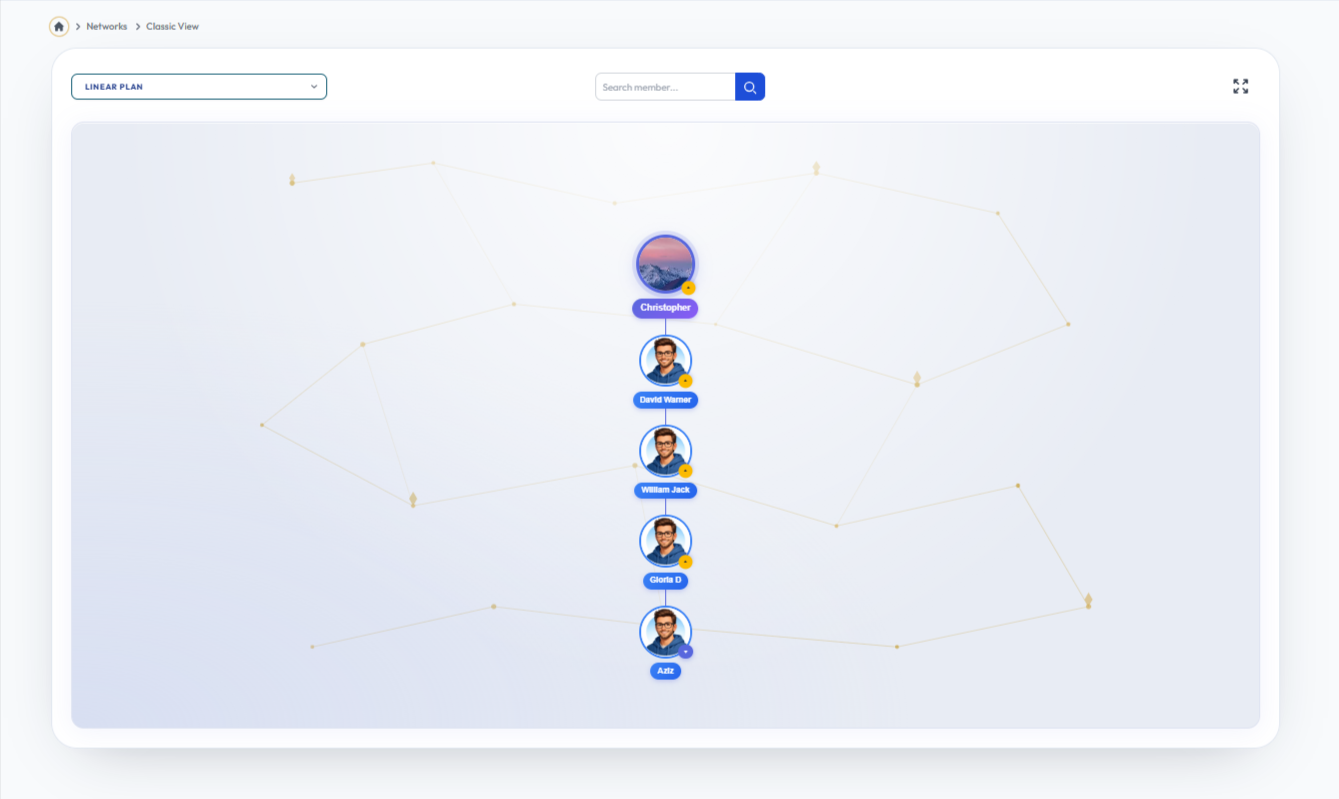
Classic
Flow Definition
Configure and manage the Classic settings to customize the platform to your specific business requirements.
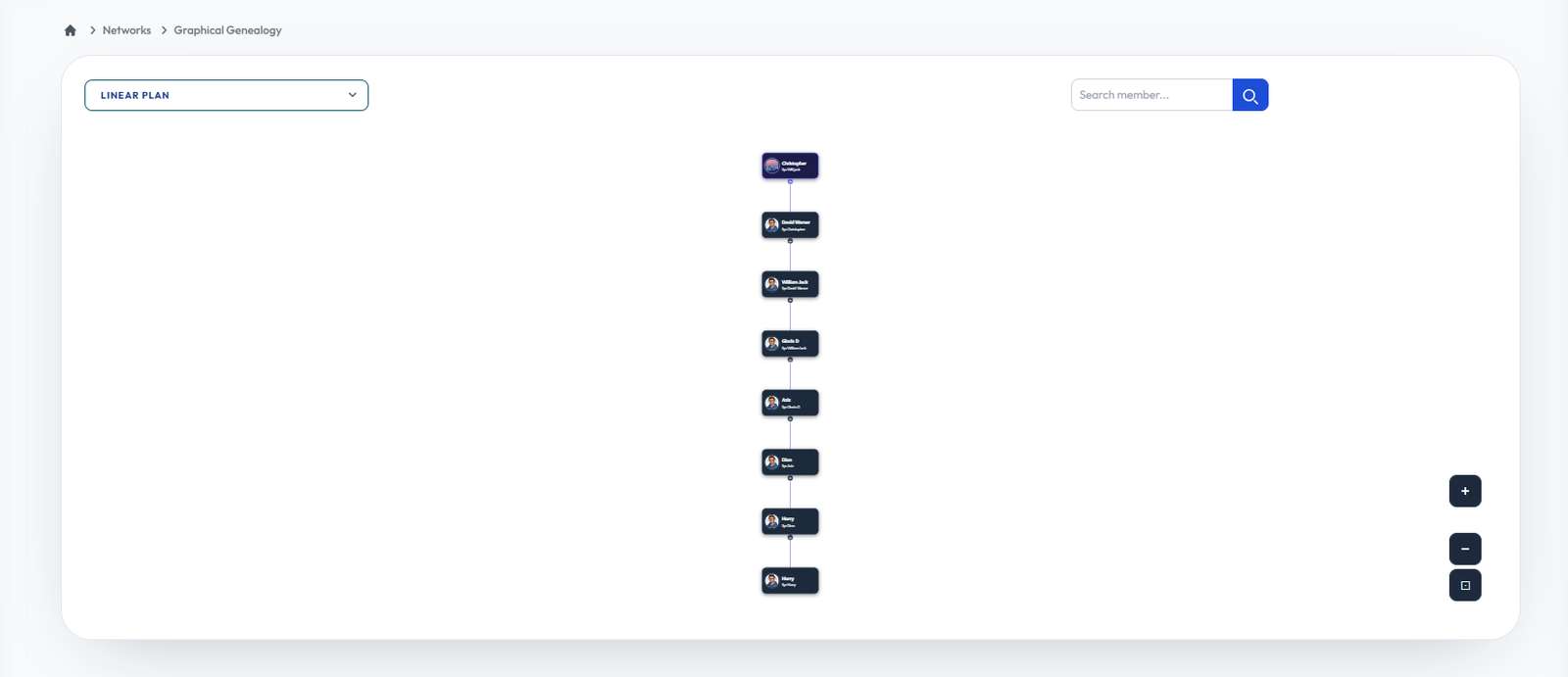
Graphical
Flow Definition
Configure and manage the Graphical settings to customize the platform to your specific business requirements.
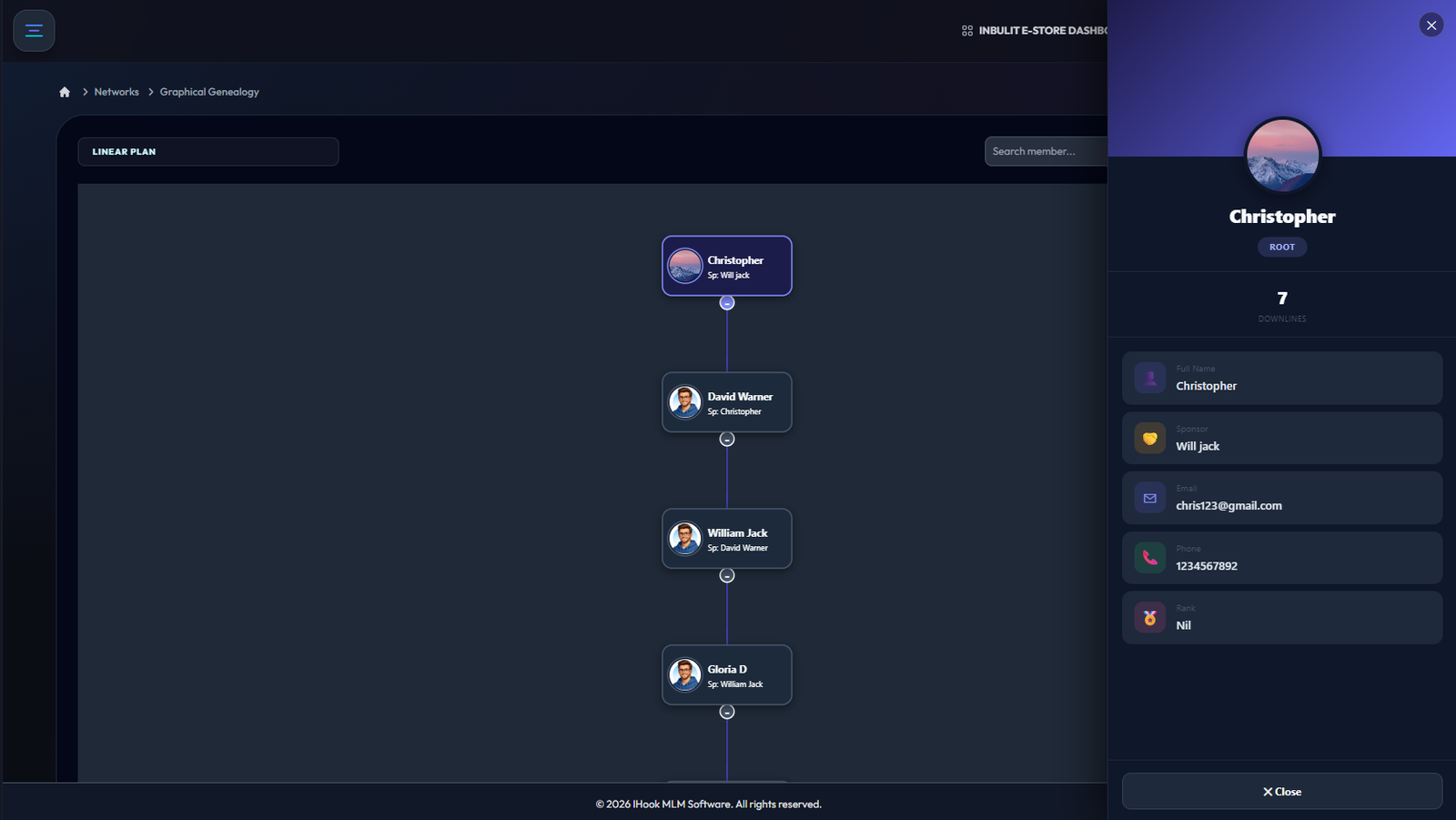
Graphical User Deatails
Flow Definition
Configure and manage the Graphical User Deatails settings to customize the platform to your specific business requirements.
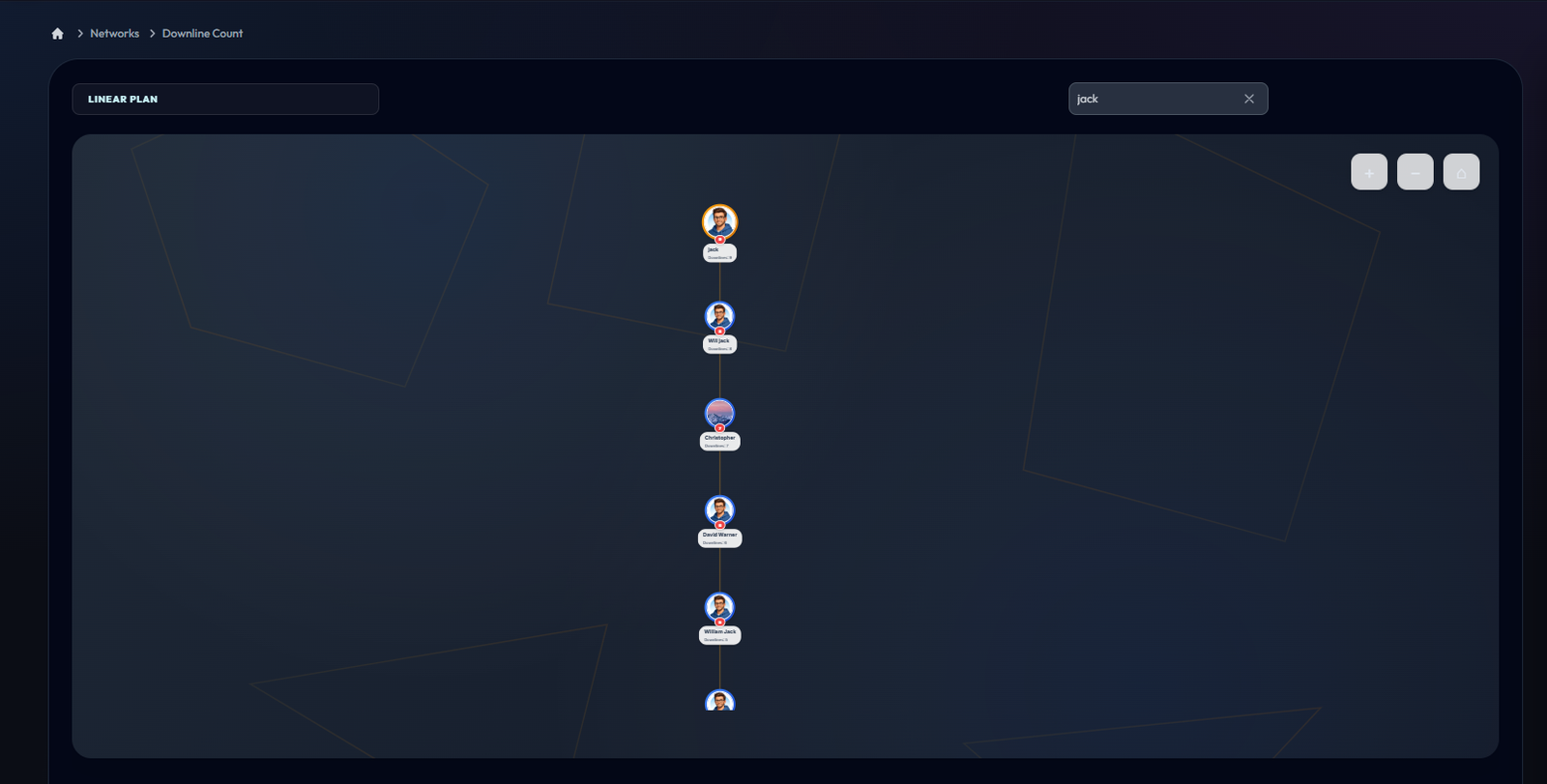
Downline
Flow Definition
Configure and manage the Downline settings to customize the platform to your specific business requirements.
Downline User Details
Flow Definition
Configure and manage the Downline User Details settings to customize the platform to your specific business requirements.
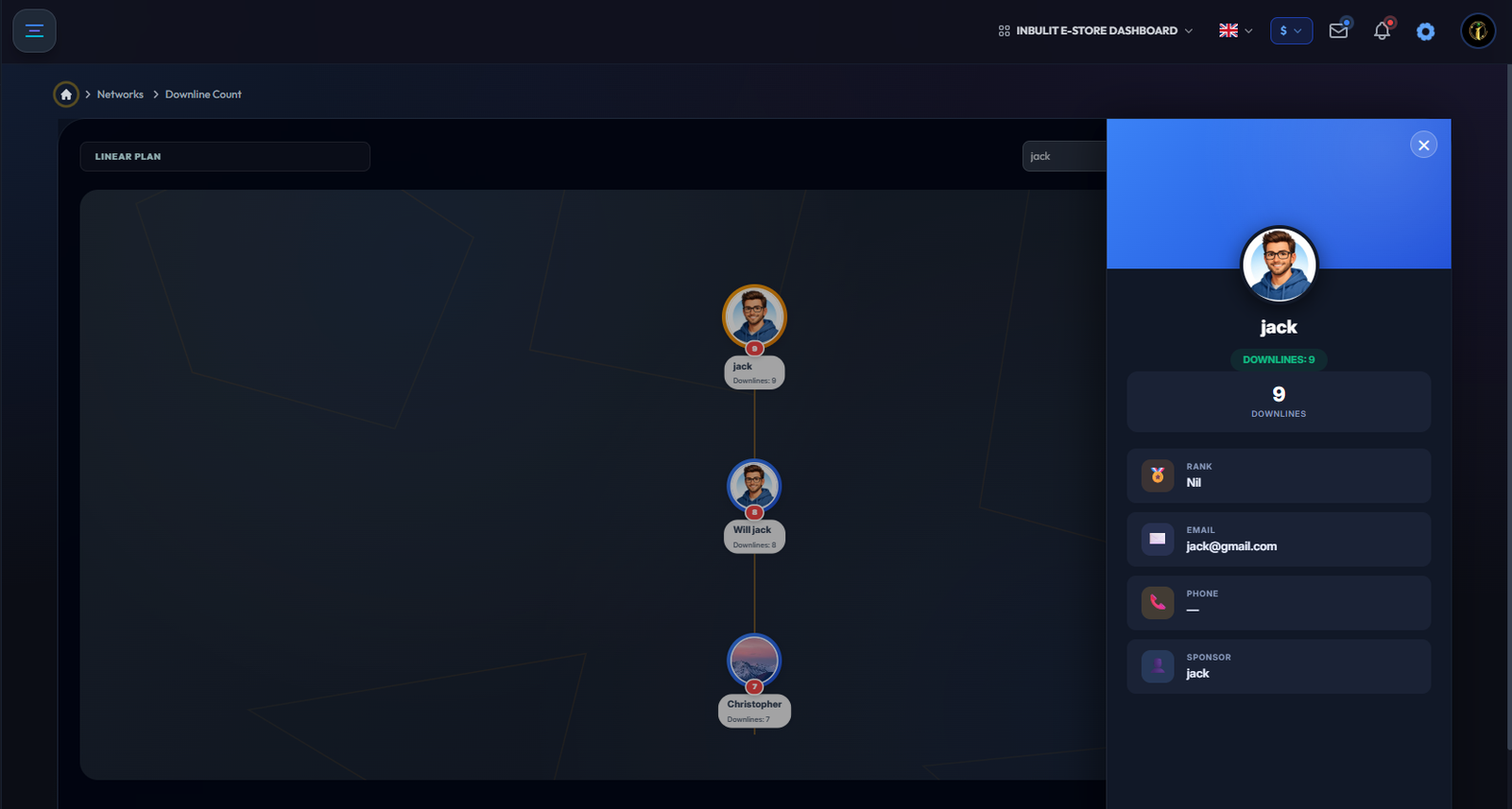
Tabular
Flow Definition
Configure and manage the Tabular settings to customize the platform to your specific business requirements.
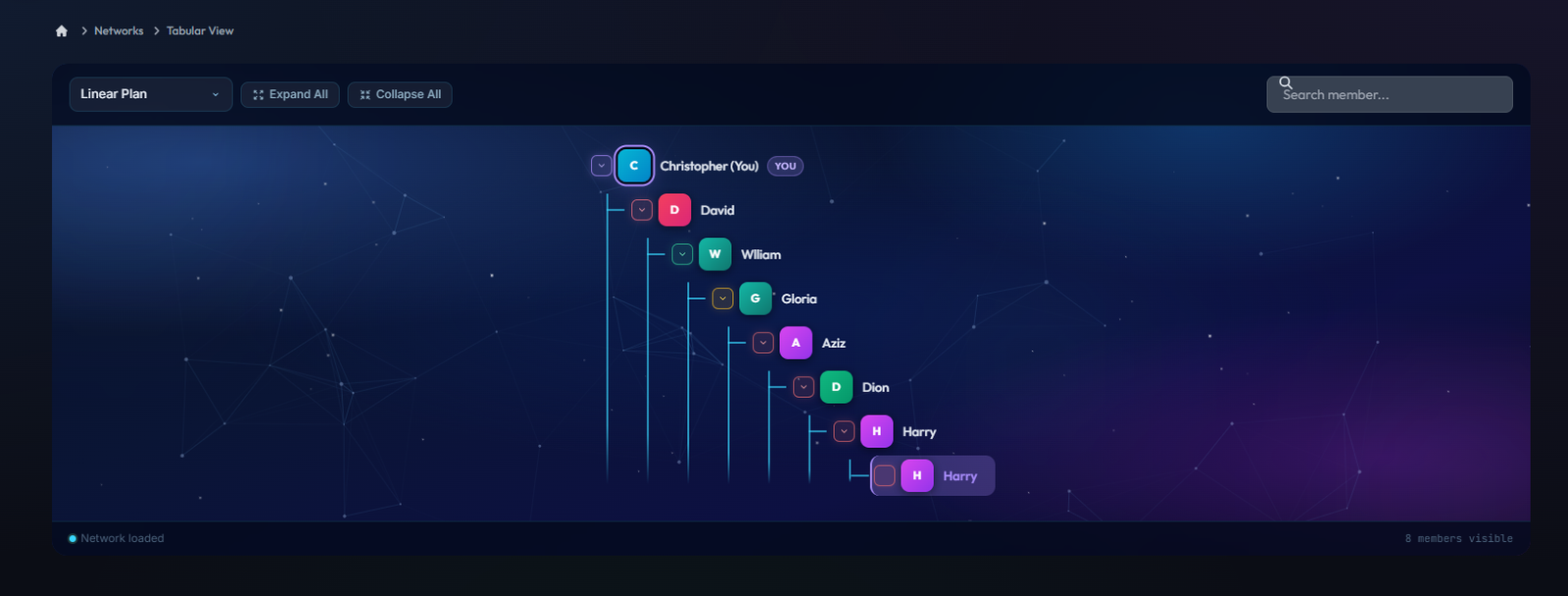
Rank
Flow Definition
Configure and manage the Rank settings to customize the platform to your specific business requirements.
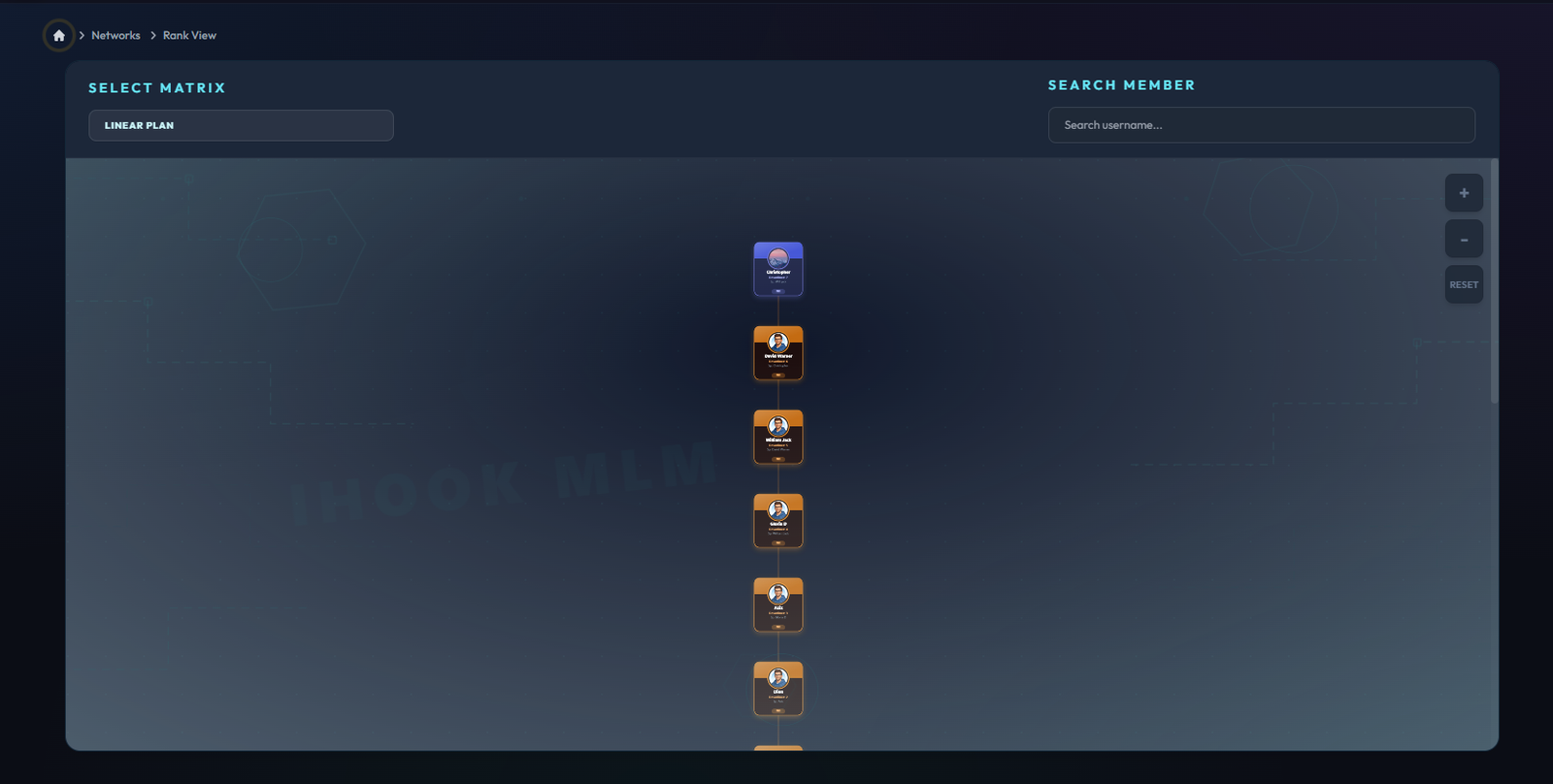
Rank User Details
Flow Definition
Configure and manage the Rank User Details settings to customize the platform to your specific business requirements.
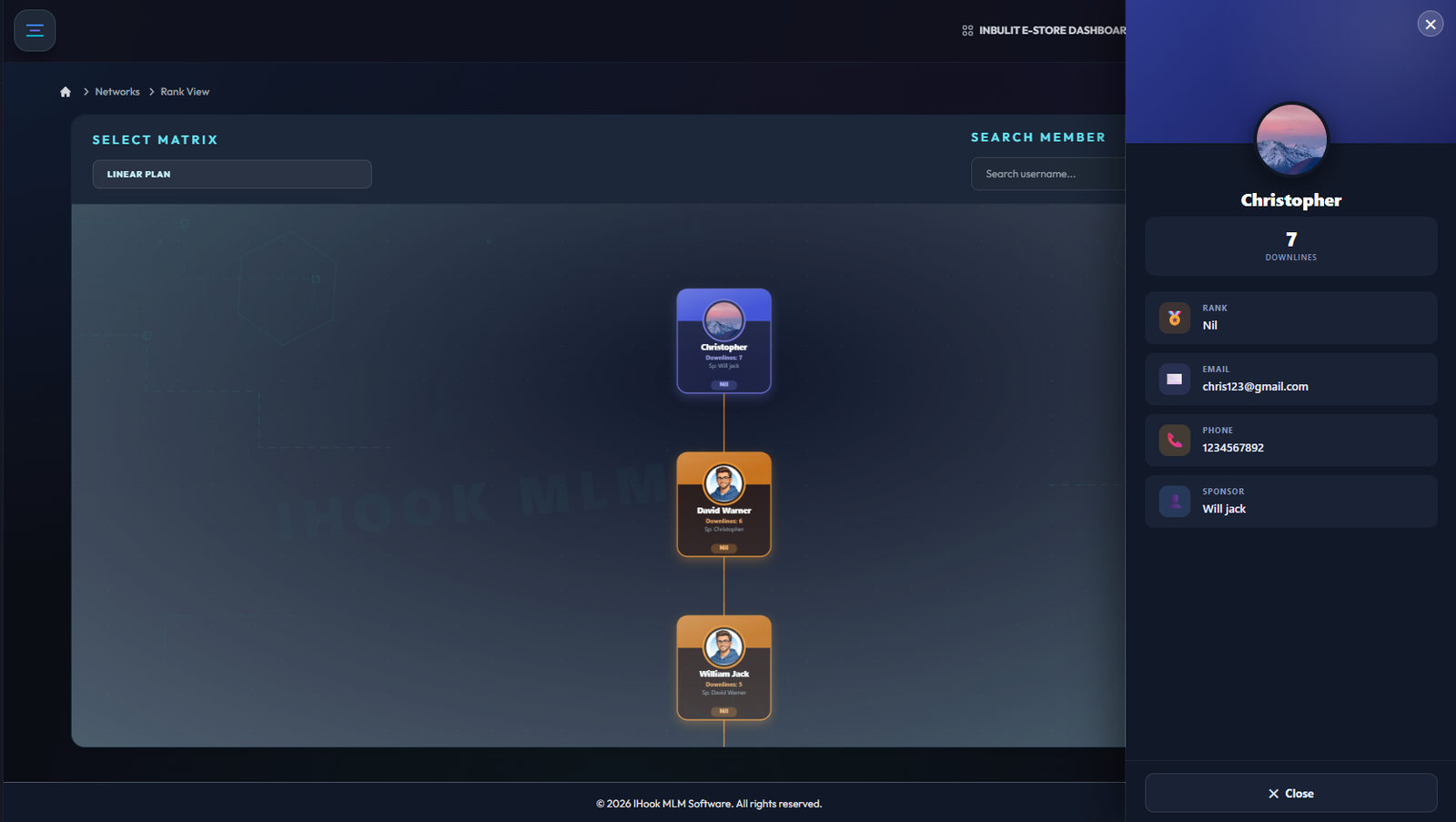
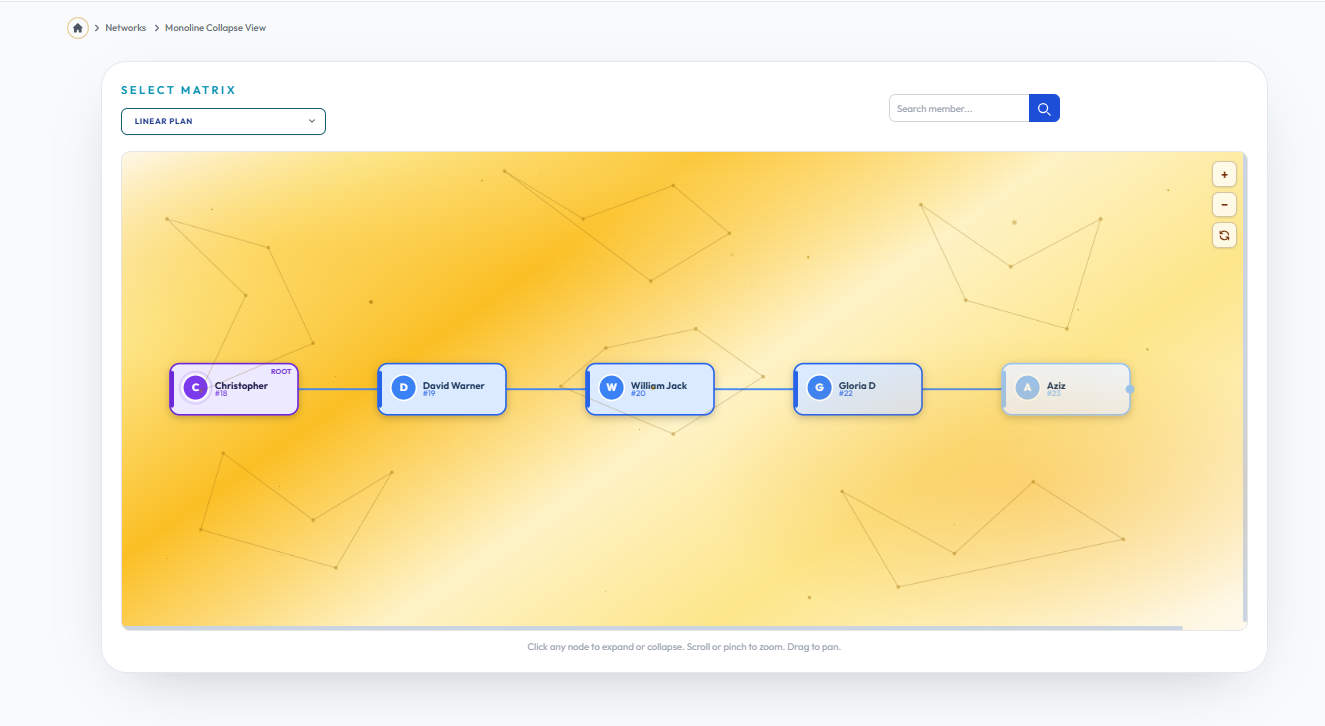
Collapse
Flow Definition
Configure and manage the Collapse settings to customize the platform to your specific business requirements.
Once you have configured the settings on this page, proceed to the next module in the sidebar to continue your setup workflow.